Chrome extension · Free
Privacy checks, right in Chrome
The Velo privacy inspector is a free Chrome extension. It checks whether the Google tags on the page you’re looking at respect Consent Mode and send enhanced conversions, and it opens in Chrome’s side panel, so you see the findings next to the site.
For Chrome on desktop, from the Chrome Web Store.
Works with the platforms you build on












What it checks
It runs four technical checks: two for Consent Mode, one for consent defaults and one for enhanced conversions.
Consent Mode
- Whether Google Analytics, Google Ads, Floodlight and Tag Manager requests carry a consent state.
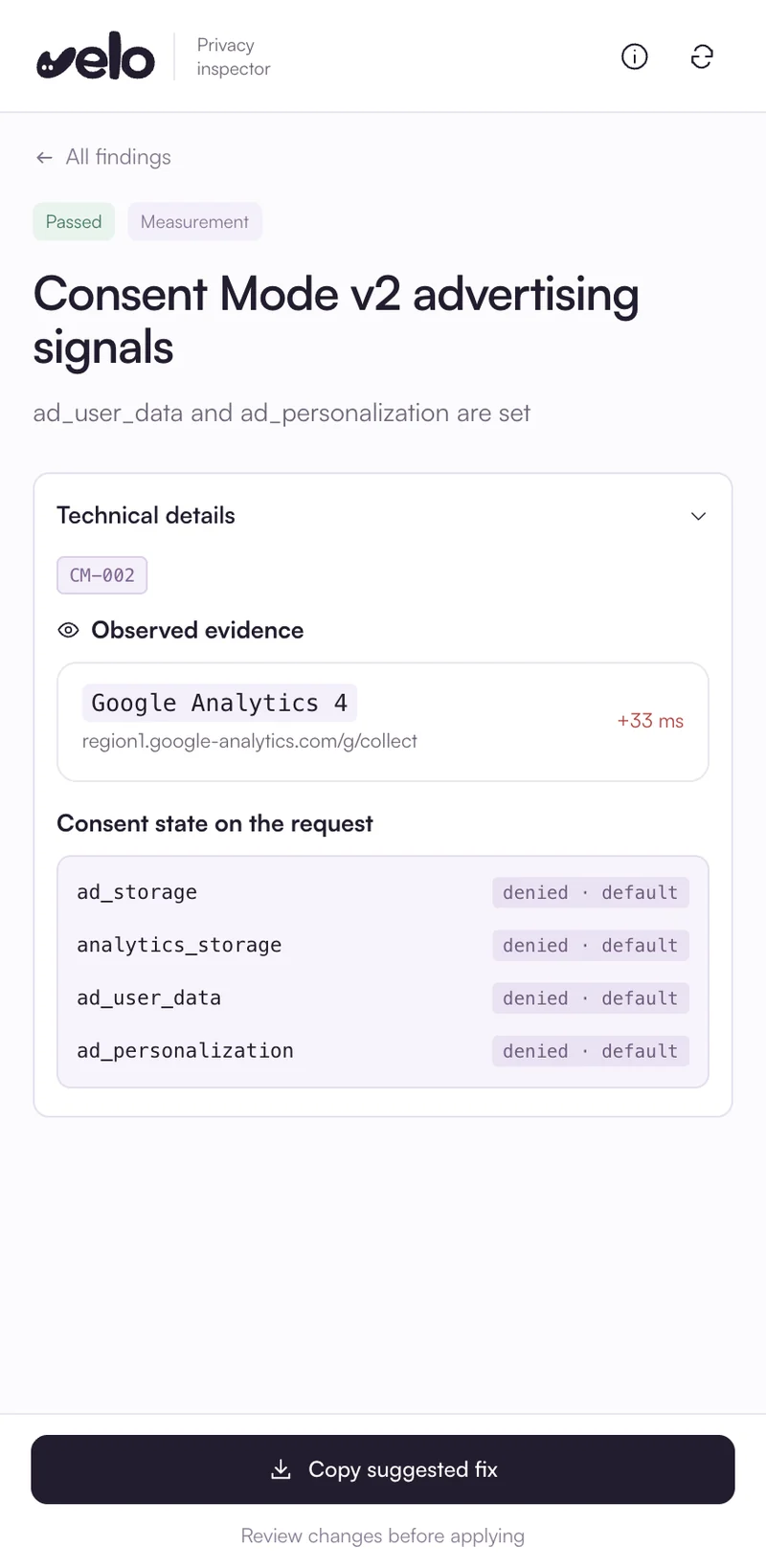
- Whether the v2 advertising signals are set.
- It checks the
gcsandgcdparameters. - It flags tags that were blocked.
Consent defaults
- Whether the first Google tag request already carries default consent, rather than firing before the defaults are set.
- It checks the order of events.
- It times the first tag request.
- It decodes the default states.
Every check comes with the evidence behind it
Each check shows the requests it observed, the decoded consent states and the steps to fix it.
Enhanced conversions
With Test a form, the inspector watches the tab for up to 5 minutes while you submit your own form, then checks the Google Ads conversion it sends. It looks at the user data sent and the ad_user_data consent. The hash itself is never stored.
What it won’t claim
A scan can highlight potential problems, but it can’t confirm full compliance or see how a server handles data. It doesn’t test server side processing or withdrawing consent, and it never issues a compliance certificate.
Chrome asks you to allow access to a site the first time you scan it. The analysis runs in your browser and nothing is sent to Velo.
Everything a consent setup needs
The same banner, records and scans on every plan. Pro adds unlimited sites, unlimited scans and your own logo.
Your banner asks in the visitor’s language and follows the defaults you set for their region.
Every choice is recorded, and Consent Mode v2 passes it on to your Google tags.
Install it in three steps
The inspector installs like any other Chrome extension, straight from the Chrome Web Store.
Add to ChromeAdd it from the Chrome Web Store
Open the Velo privacy inspector listing on the Chrome Web Store and choose Add to Chrome. Chrome shows what the extension can access before it installs, so you can read the list first.
Chrome Web Store → Add to Chrome → Add extensionPin it to your toolbar
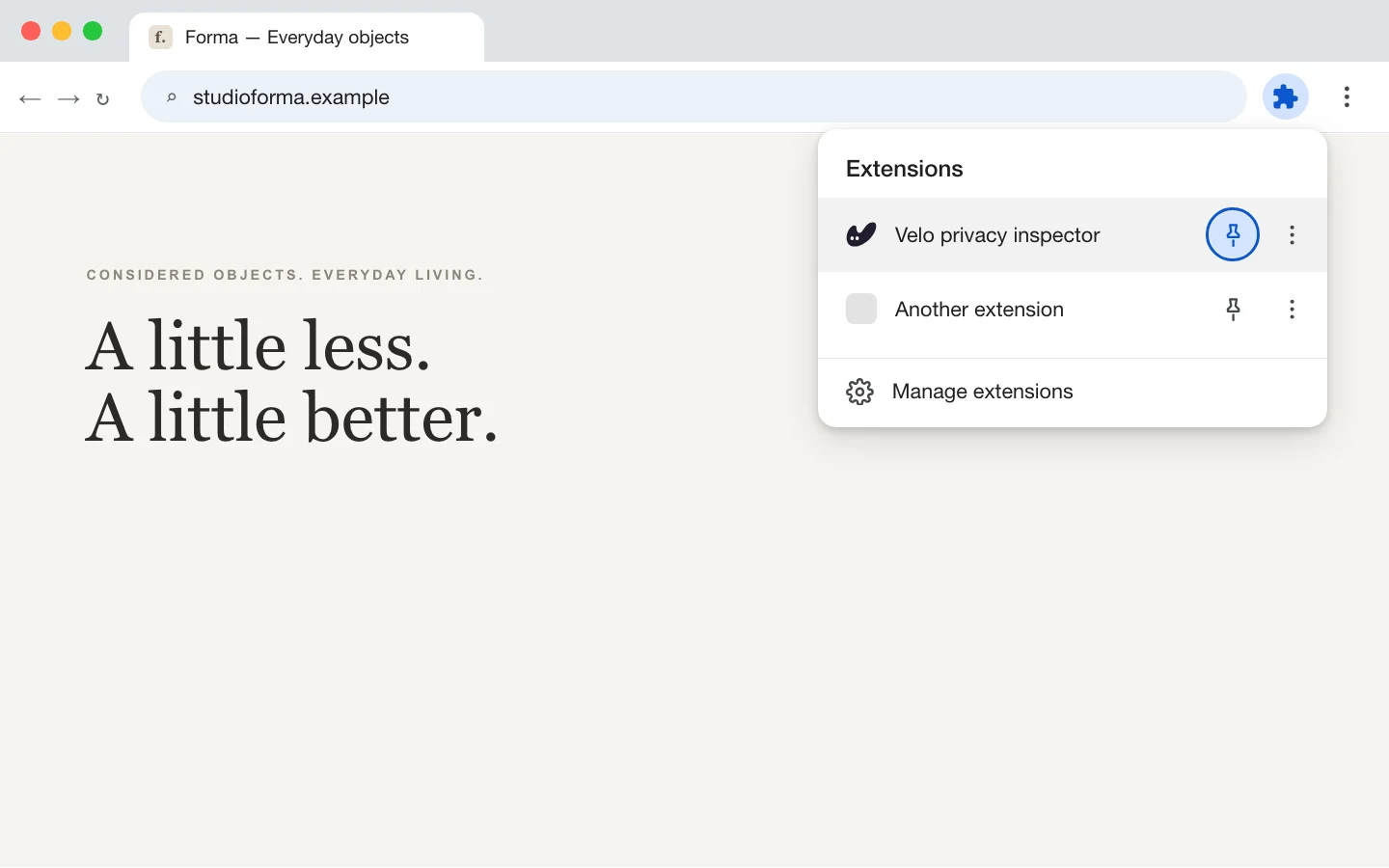
Click the puzzle piece icon to the right of the address bar, find Velo privacy inspector and click the pin next to it. The Velo icon now sits in your toolbar, one click away.
Open it on the site you want to check
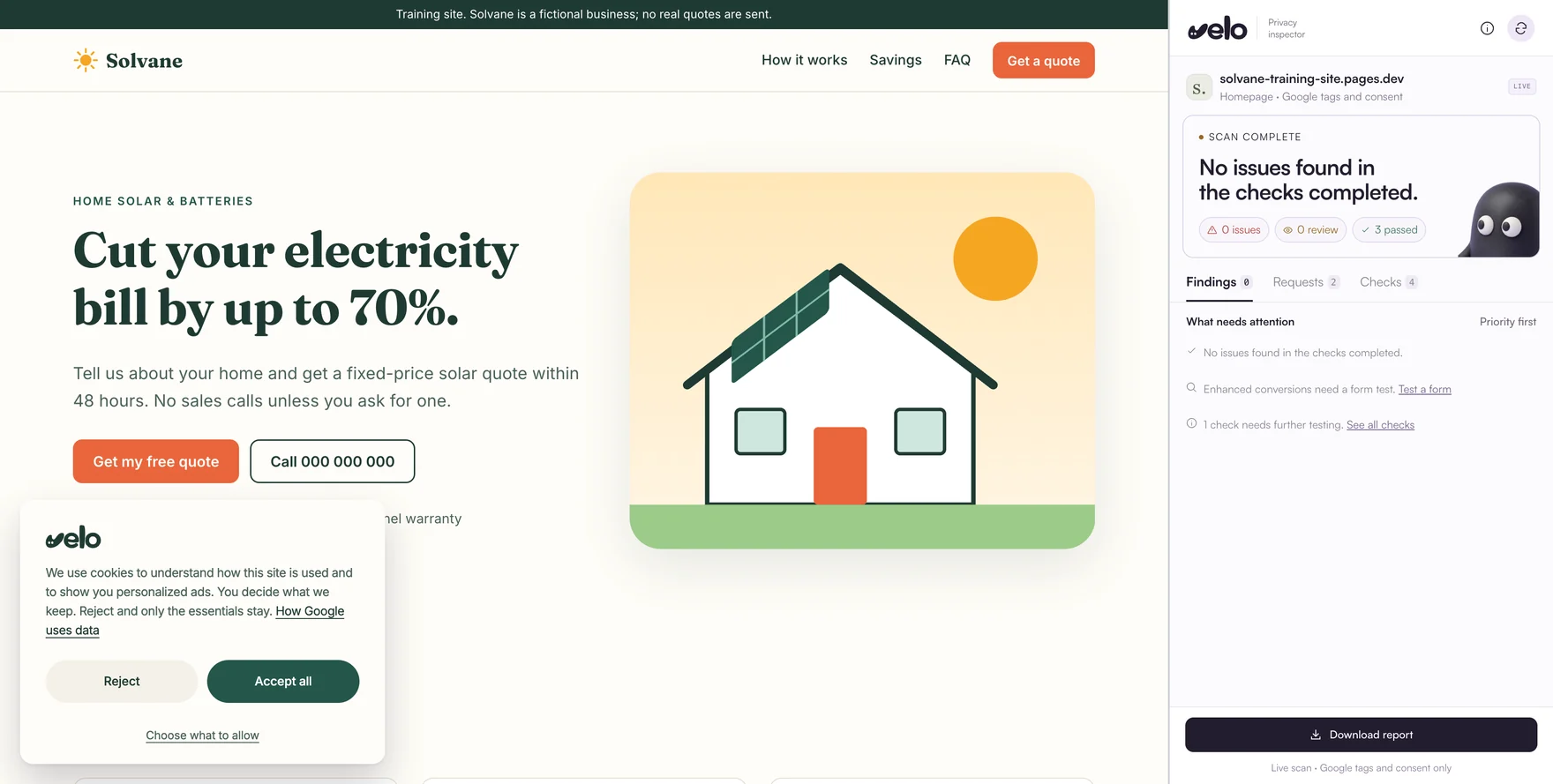
Go to the page you want to check and click the Velo icon. The inspector opens in Chrome's side panel, next to the site, so the page and its findings stay in view together.
How it works
There are three screens, in the order you’ll meet them: check the page, see what needs attention, then fix it. These are real screens from the live extension, scanning our fictional training site.
Check the page you’re on
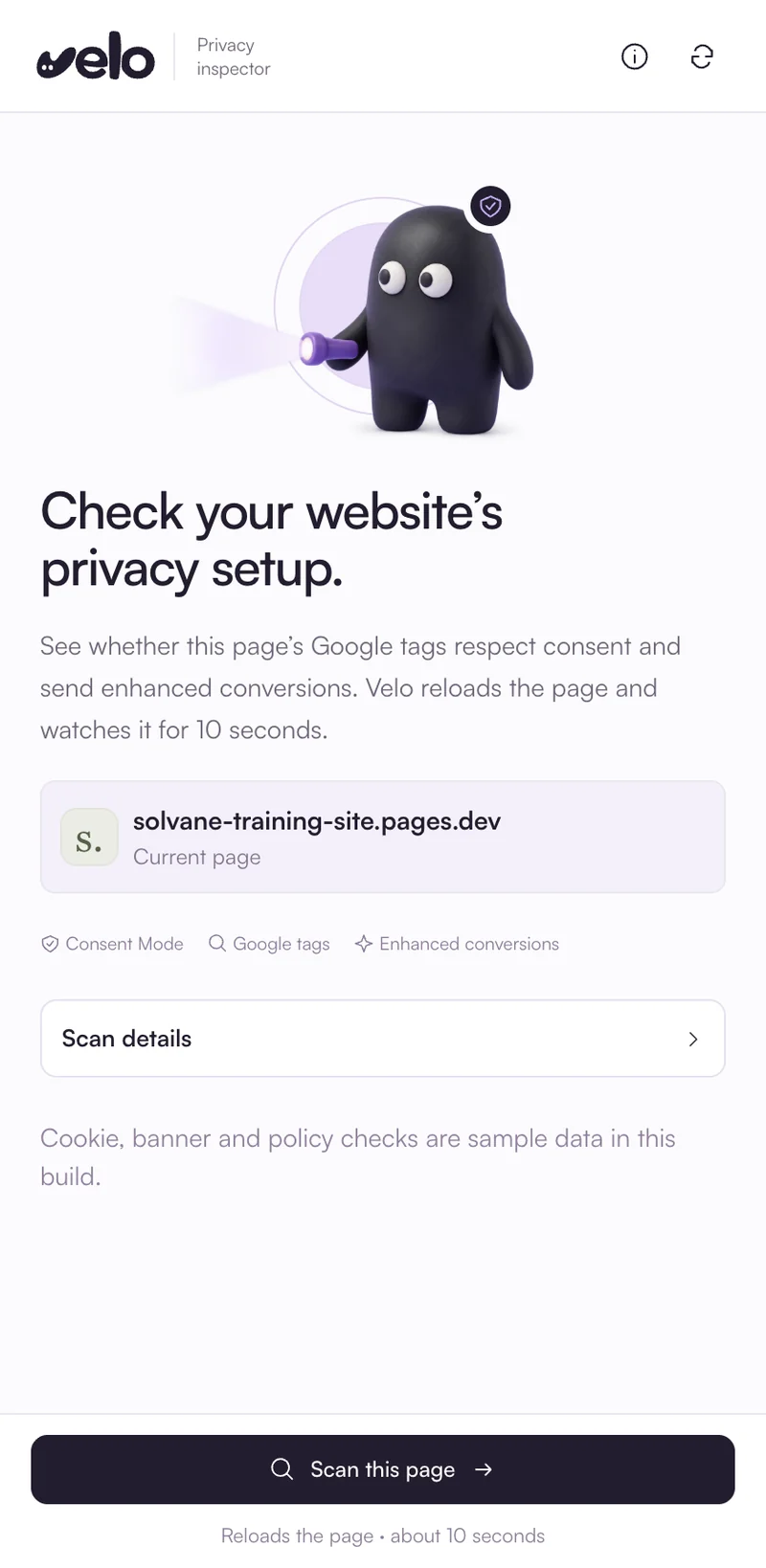
Press Scan this page. The inspector reloads the tab and watches its Google tags for 10 seconds.
See what needs attention
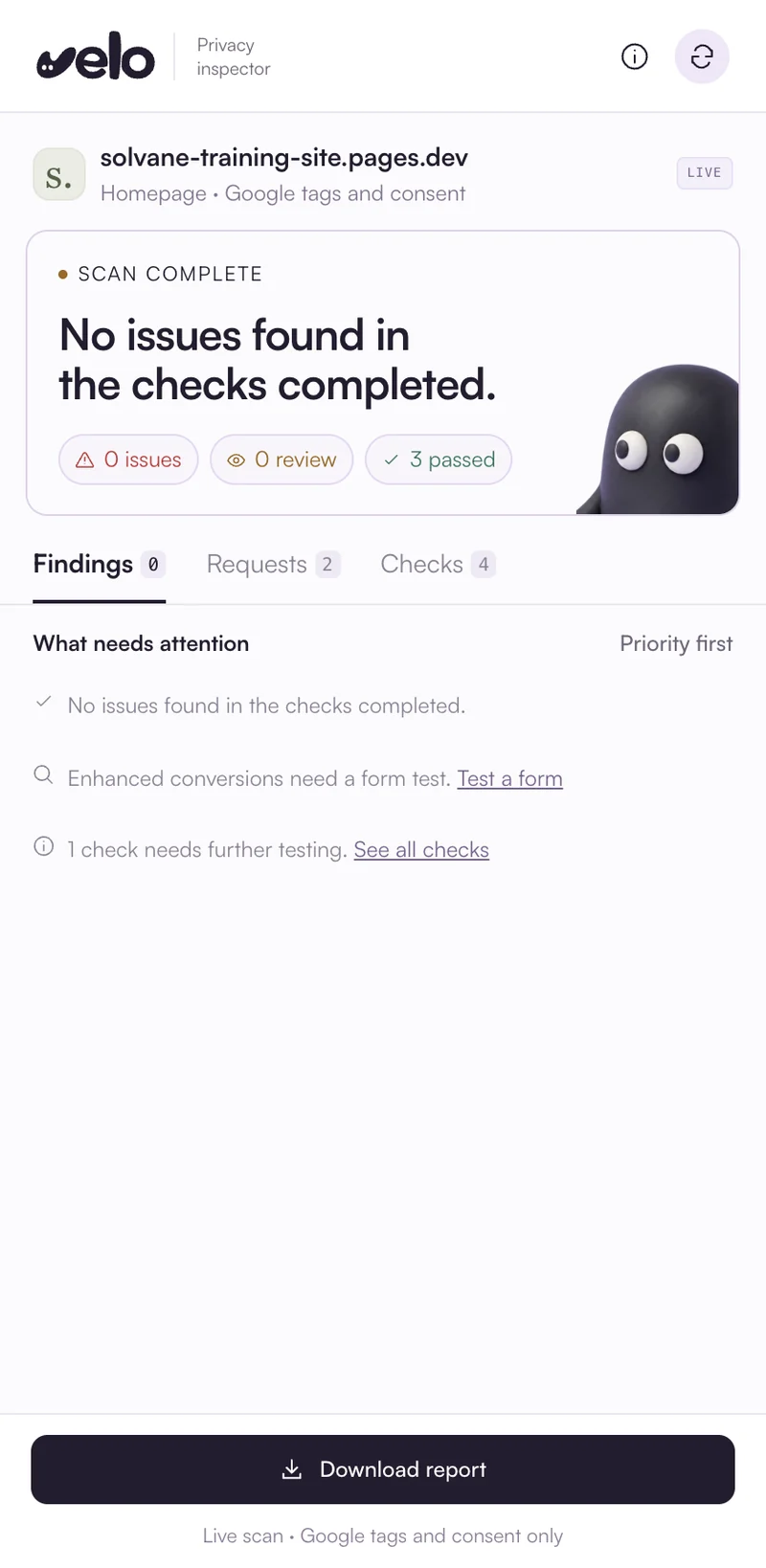
Findings are listed most urgent first, each with a status in plain words.
Understand what to fix
Open a check to see the evidence behind it. If it fails, you also get the fix in plain words.
Check your site today
The extension checks the Google tags on one page. To check cookies, trackers and your banner, use these instead.
Reads your homepage the way a first time visitor sees it, and reports the trackers that load, the consent layer and Google Consent Mode v2.
The scan in your Velo account lists every cookie your pages set, before and after Accept all
Fix what a scan finds with the Velo banner, using step by step install guides for 15 platforms and Google Tag Manager
Extension questions
Where do I get the extension?
It’s on the Chrome Web Store and it’s free. Open the listing and choose Add to Chrome.
Which browsers does it work in?
It works in Chrome on desktop. The inspector is built on Chrome’s side panel, which keeps the findings next to the page you are checking.
What does it check?
It checks whether the Google tags on the page use Consent Mode, whether the Consent Mode v2 advertising signals are set, whether consent defaults are set before the first Google tag request, and whether a Google Ads conversion from your own test form carries enhanced conversions data.
Does a clean result mean my site is GDPR compliant?
No. Each finding is a single check with the evidence behind it. A scan can highlight potential problems, but it can’t confirm full compliance or see how a server handles data. Velo measures Google tags and doesn’t assess legal compliance.
What can the extension access?
Only what its checks need. Chrome lists an extension's permissions before you add it, so you can read them before anything installs. Chrome asks you to allow access to a site the first time you scan it. The analysis runs in your browser and nothing is sent to Velo.
Does it check cookies?
No. For cookies, the free cookie scanner reads your homepage in seconds, and the browser scan in a Velo account lists every cookie your pages set. Free accounts get one scan a month.
Add it to Chrome
The Velo privacy inspector is a free Chrome extension. It opens in Chrome's side panel, so the findings sit next to the site.